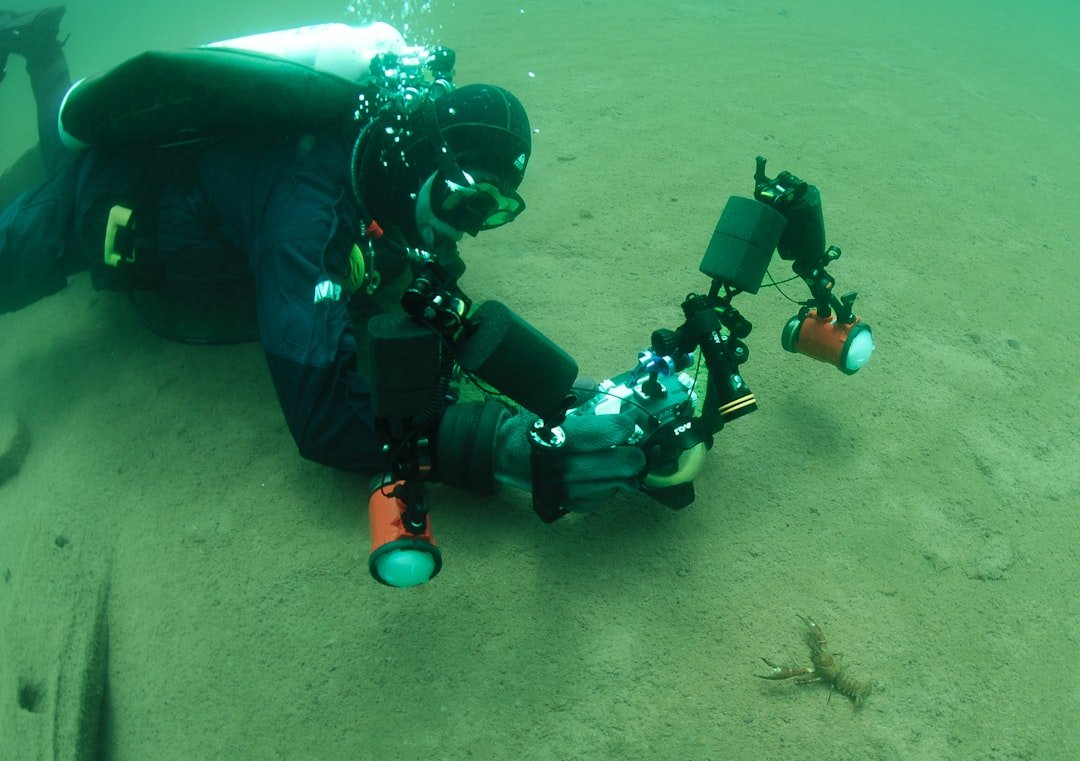
Most divers shoot action camera footage that looks flat, murky, or oversaturated because they never adjust settings before entering the water. Getting the best action camera settings for diving right means understanding how resolution, frame rate, and white balance interact at depth — and it’s simpler than you think. Start here to lock in settings that deliver vibrant, sharp footage every dive.
Why Your Underwater Footage Looks Worse Than You Expected
Light behaves differently underwater. Red wavelengths disappear first, greens follow, and you’re left with a blue-dominated world that cameras struggle to interpret correctly. You’d think automatic white balance fixes this — it usually doesn’t. Most action cameras default to oversaturation or underexposure because they’re calibrated for bright daylight, not the dim, color-shifted environment 60 feet down. I’ve been diving with action cameras for years, and the single biggest mistake I see is divers leaving every setting on auto and hoping the footage comes out usable.
It doesn’t.
| Setting | Shallow Dive (0–30 ft) | Medium Depth (30–60 ft) | Deep Dive (60+ ft) |
|---|---|---|---|
| Resolution | 4K 60fps | 4K 30fps or 2.7K 60fps | 2.7K 30fps |
| White Balance | Auto or Shallow Water | Shallow Water or Cloudy | Tungsten or Manual 3000K |
| ISO | Auto or 100–200 | 200–400 | 400–800 (accept grain) |
| Frame Rate | 60fps (smooth pan) | 30fps (standard) | 24fps (cinematic, reduces noise) |
Understanding Resolution, Frame Rate, and White Balance Together
Resolution and frame rate are locked together in trade-offs. Higher resolution demands more processing power and generates larger files faster. Going from 4K 60fps to 2.7K 30fps cuts file size nearly in half and dramatically improves low-light performance at depth. Your 64GB card lasts twice as long, and the best action camera settings for diving balance image quality against practical constraints.
Why does that matter?
At 100 feet, ambient light is so scarce that 4K becomes grainy noise. Frame rate also affects perceived motion smoothness. Sixty frames per second captures smooth pans and fast-moving subjects, but it magnifies any camera shake and increases file size. Thirty frames per second strikes the sweet spot for most recreational diving, offering smooth playback without penalty. Dive shallower than 40 feet in tropical light, and 4K 60fps absolutely delivers. Drop below that, and you’re throwing away storage and battery life for grain-filled footage nobody wants to watch.
White balance is where the magic happens. Most cameras offer presets: Auto, Daylight, Cloudy, Tungsten, and sometimes Shallow Water or Underwater modes. I’ve been shooting with the same camera system for five years, and the Shallow Water preset at 30 feet pulls back blue cast and restores natural color balance far better than Auto ever does. At 60 feet and deeper, tungsten (3000K) or manual adjustment becomes necessary. Auto white balance at depth produces videos so blue they look like they were filmed in a swimming pool, not a living reef.
Checklist: Before You Dive, Verify These Settings
- Battery is fully charged and you have a backup battery in a waterproof container
- Resolution is set to match your dive depth and available light conditions
- Frame rate is 30fps for standard dives, 60fps only for shallow water with strong sunlight
- White balance is manual or set to Shallow Water mode, not Auto
- ISO is locked at 200–400, not set to auto-scale
- Lens distortion correction is enabled if your camera offers it
- Recording format is H.265 if available to save file space and improve quality
- You have deleted old footage to confirm at least 30 minutes of free storage remains
Step-by-Step: How to Set Up Your Camera Before the Dive
This process takes five minutes topside and prevents frustration below the surface. Most divers skip this step and chase settings while underwater, losing footage and burning battery power.
- Check weather and water conditions to estimate light availability. Sunny tropical water needs different settings than a temperate dive in cloud cover.
- Match your depth expectations to the resolution and frame rate chart above. If you’re dropping past 60 feet, dial resolution down to 2.7K and frame rate to 30fps.
- Open your camera’s white balance menu and select Shallow Water mode as your baseline. Do not use Auto for any dive deeper than 20 feet.
- Lock ISO between 200 and 400. Higher ISO at depth creates acceptable grain; auto ISO causes fluctuation and color shifts between frames.
- Test the best action camera settings for diving on a test clip during your surface interval. Play it back on your camera screen to confirm colors look natural, not blue or oversaturated.
- If the test clip looks too blue, shift white balance warmer by one step or adjust manually by 500K toward tungsten (3000K).
- Record your final settings on paper or your phone. You’ll reference them for your next dive at the same site.
Here’s where most divers give up: they shoot one dive, hate the footage, and never adjust settings again.
Instead, review footage immediately. Blue cast? Move white balance warmer. Grainy and dark? You’re deeper than expected; reduce frame rate to 24fps. No motion blur but perfect color? Lock those exact settings for that location.
The Best Action Camera Settings for Diving at Different Depths
Dive depth determines everything. The best action camera settings for diving aren’t universal — they’re conditional.
Shallow Reef Dives (0–30 Feet)
Sunlight penetrates well here. Use 4K at 60fps to capture detail and smooth motion. White balance on Auto or Shallow Water works fine because reflected sunlight provides enough color information. Drop frame rate to 30fps only if you’re experimenting with cinematic effect or need maximum battery life.
Standard Sport Dives (30–60 Feet)
This is where manual intervention pays dividends. Shift to 2.7K or 4K at 30fps depending on your camera’s processor. Switch white balance to Shallow Water or Cloudy preset. Most of the red spectrum has been absorbed, and manual white balance corrects that loss in post-production far better than auto. Test before committing to a long dive.
Wreck and Deep Dives (60+ Feet)
Ambient light is scarce. Use 2.7K at 24fps with tungsten white balance or manual 3000K setting. Higher frame rate becomes liability — it amplifies sensor grain and chews storage for footage that still looks murky. Accept that 24fps feels slower; it actually looks more cinematic and reads as intentional, not underexposed.
Common Mistakes That Ruin Footage (And How to Avoid Them)
I’ve seen so many divers make the same errors over and over.
Mistake one: leaving resolution on 4K for every dive regardless of depth. Result — grainy, washed-out clips that waste 1 gigabyte per three minutes and make battery last 45 minutes instead of two hours. Drop to 2.7K at depth. You won’t notice the difference when colors are this limited anyway.
Mistake two: assuming frame rate doesn’t matter. Sixty frames per second at 80 feet looks jerky and hyper-realistic because there’s almost no motion happening. Switch to 24fps and the slow footage reads as intentional, moody, and professional. It’s actually the opposite of what most people expect.
Mistake three: trusting Auto white balance. It fails. Every time. You’ll spend an hour in post-production color-grading footage that raw auto settings mangled beyond recovery. Manual white balance takes 30 seconds. Do it.
My Picks for This
- GoPro Hero 12 Black — Offers the best balance of 4K video, shallow-water performance, and tungsten white balance presets for the price range most recreational divers accept.
- DJI Osmo Action 4 — Strong low-light performance at depth with reliable white balance stability and H.265 codec that keeps file sizes manageable even in 4K 60fps mode.
- Olympus TG-7 — Rugged fixed-lens compact with excellent macro focus and underwater color science that holds saturation at depth without oversaturation in shallow water.
- Insta360 ONE RS with 4K Mod — Modular system lets you swap to lower resolution on deep dives without carrying multiple cameras or swapping lenses.
- Canon PowerShot D20 — Veteran compact with true underwater white balance adjustments and battery life that lasts 120+ minutes of continuous 4K recording, rare in this category.
Frequently Asked Questions (FAQ)
Q1. What’s the difference between 4K and 2.7K underwater, really?
At depth past 50 feet, color information and ambient light are so reduced that extra resolution becomes invisible grain. 4K at 80 feet looks identical to 2.7K after you’ve compressed it for sharing, except the 2.7K file is half the size and took less battery to record.
Q2. Should I use 24fps, 30fps, or 60fps?
Sixty frames per second is best for shallow tropical dives with fast-moving subjects like fish schooling behavior. Thirty frames per second is the standard for most recreational diving — smooth and professional without excess file size. Twenty-four frames per second works best below 70 feet where motion is slow anyway and low light makes higher frame rates show too much grain.
Q3. Can I fix bad white balance in post-production?
Partially. If your camera recorded in RAW or log format, yes. Standard H.264 or H.265 video recorded with incorrect white balance has lost color information you can’t recover perfectly. Manual white balance before diving takes 30 seconds and saves two hours of color-grading later.
Q4. Does my camera’s underwater mode actually work?
Underwater or shallow water presets vary wildly between brands. Most work reasonably well in shallow tropical sites. Test your specific camera in shallow water before trusting it on deep dives. Some underwater modes are more aggressive than manual white balance, which occasionally causes oversaturation.
Q5. What ISO should I use underwater?
Lock it between 200 and 400 for most dives. Auto ISO fluctuates frame-to-frame and causes visible color shifts. Higher ISO at depth (400–800) produces acceptable grain when your alternative is underexposed footage at ISO 100. Accept that deep footage looks grainier — the best action camera settings for diving prioritize usable footage over perfect clarity.
Q6. How many minutes of video does my card hold?
That depends on resolution, frame rate, and codec. Roughly: 4K 60fps uses 1.3GB per minute; 4K 30fps uses 700MB per minute; 2.7K 30fps uses 400MB per minute. A 64GB card holds approximately 50 minutes of 4K 60fps or 160 minutes of 2.7K 30fps. Verify your camera’s specs rather than assuming, as codec and sensor differences vary.
Q7. Should I use electronic image stabilization?
Yes, if your camera offers it, especially at 60fps or higher. Electronic stabilization crops slightly into the frame, but it eliminates jittery hand movement that looks amateurish. Disable it only if your camera processor lags and causes frame drops.
This post is for informational purposes only and does not constitute professional diving instruction, medical advice, or travel guidance. Scuba diving involves inherent risks — always train with a certified instructor and consult a physician before diving. Prices, product specs, dive site conditions, operator schedules, and entry requirements are subject to change without notice. Always verify current details directly with manufacturers, retailers, dive operators, and local authorities. This site may contain affiliate links — purchases made through our links may earn us a commission at no extra cost to you.