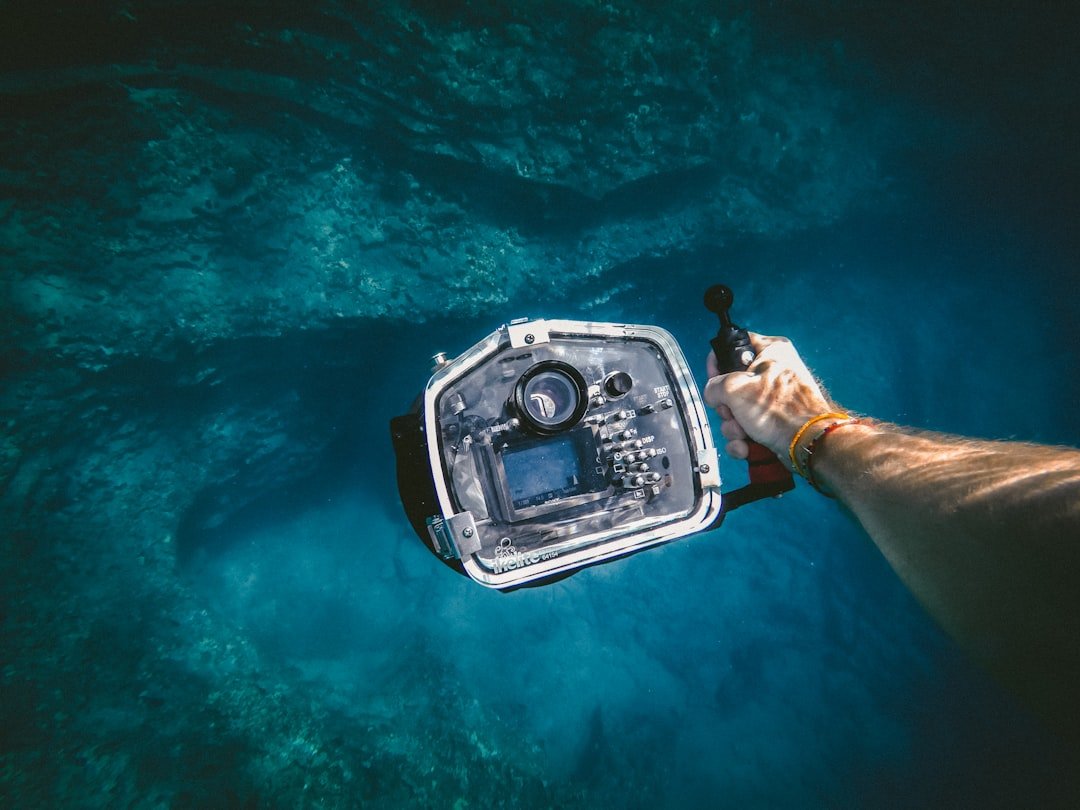
Your GoPro arrives, you hit the water, and the footage looks like you filmed it through a murky window. Flat colors, no reds, shaky motion—it’s not your camera. It’s your settings. The best settings for underwater GoPro video transform what most recreational divers settle for into footage that actually feels like being underwater again when you watch it at home.
Why Most Divers Use the Wrong Settings
I’ve been diving with GoPro Hero models for years, and I can tell you straight—the camera ships with default settings designed for topside use. Red light doesn’t penetrate seawater beyond 15 feet. Your GoPro doesn’t know this. Without manual intervention, you get videos where everything looks green, cyan, or utterly desaturated. Add surge, and the auto-stabilization fights itself into a blur. You’d think the camera would handle underwater video out of the box—it usually doesn’t.
Most people don’t realize that best settings for underwater GoPro video aren’t found in the presets menu.
They live inside the resolution, frame rate, and color correction tabs that recreational divers skip entirely. That’s the gap between a backup camera and an underwater cinematography tool.
Quick Reference: Best Settings for Underwater GoPro Video at a Glance
| Setting | Shallow Dives (20–50 ft) | Mid-Range Dives (50–80 ft) | Deep Dives (80+ ft) |
|---|---|---|---|
| Resolution | 4K 30fps or 2.7K 60fps | 2.7K 60fps | 1080p 60fps |
| White Balance | Native / Flat Color | Native / Flat Color | Native / Flat Color |
| Stabilization | Hypersmooth On | Hypersmooth On | Hypersmooth On |
| Color Profile | Flat (for editing) | Flat (for editing) | Flat (for editing) |
The Best Settings for Underwater GoPro Video: Depth by Depth Breakdown
Shallow water demands one approach. The deeper you go, the best settings for underwater GoPro video shift entirely.
Shallow Dives: 20–50 Feet
At these depths, enough red light penetrates that color correction feels less catastrophic. Set resolution to 4K at 30fps or 2.7K at 60fps. The frame rate choice matters—60fps gives you slow-motion options and smoother motion when you apply color grading in post. Enable Hypersmooth stabilization. Without it, hand tremor and surge create motion that editing software struggles to fix. Set color correction to Flat. This preserves maximum dynamic range and lets you grade the footage yourself, bringing back color information that aggressive in-camera color crushes away.
Mid-Range Dives: 50–80 Feet
Here’s where the best settings for underwater GoPro video start to matter operationally. Drop to 2.7K at 60fps. You’re losing some resolution, but file sizes stay manageable and battery life extends—critical when you’re logging multiple dives on one trip. Keep Hypersmooth on. Stabilization doesn’t consume much power, and the footage quality jump justifies the trade-off. White balance set to Native ensures your footage captures what actually exists in your scene, not what the camera guesses is there.
Deep Dives: 80+ Feet
Go 1080p at 60fps. Sound unintuitive for a 4K camera? It’s not. At depth, color information vanishes. Video becomes silhouette and shape. Resolution doesn’t matter if you’re watching outlines. What matters is stabilization and motion clarity. The best settings for underwater GoPro video at depth prioritize frame rate and smoothness over pixel count. Hypersmooth still on. Flat color still the move. You’re not capturing color richness—you’re capturing form and movement before darkness wins.
Color Correction: The Real Game-Changer
You want best settings for underwater GoPro video? Here it is: color correction isn’t a post-production afterthought. It starts with your in-camera choices. Flat color profile is non-negotiable if you care about final output. Standard profiles crush blacks and flatten dynamic range. Flat gives you more latitude to recover the orange, red, and magenta wavelengths that seawater absorbed. The stabilization tips that matter most have nothing to do with frame rate.
Stabilization relies on camera movement prediction.
Rapid, jerky hand motion confuses Hypersmooth because it can’t distinguish intentional panning from vibration. Hold the camera steady even before you press record. Let the stabilization algorithm do its job instead of fighting surge on top of operator error. I’ve been diving with this for years—the divers who get the sharpest video aren’t the ones with the steadiest hands. They’re the ones who mount the camera on a rig, let stabilization work solo, and avoid overhand-correcting their position every three seconds.
Pre-Dive Preparation Checklist
- Verify best settings for underwater GoPro video are configured before entering the water—no mid-dive menu scrolling
- Test white balance and stabilization settings on a practice dive first if you’ve never used them
- Charge the battery fully and carry a spare—60fps drains power faster than 30fps at the same resolution
- Apply a hydrophobic lens coating to reduce internal moisture and fogging, which kills color and clarity
- Set white balance to Native and color to Flat, regardless of depth or lighting conditions
- Enable Hypersmooth and lock it to Standard unless you’re filming fast-action sequences where you want more camera movement freedom
Step-by-Step: How to Set Up Your GoPro for an Underwater Dive
Condition: You have a GoPro (Hero 11 or 12 models recommended for underwater use), you’re diving to a known depth, and you have a stable camera housing.
Audience: Recreational divers aged 25–50 shooting their own footage or learning best settings for underwater GoPro video for the first time.
Method: Configure your camera on land, test the settings on your first shallow dive, and refine based on footage review after each trip.
- Power on the camera and navigate to Preferences, then Resolution. Choose your depth-appropriate setting: 4K 30fps for shallow, 2.7K 60fps for mid-range, 1080p 60fps for deep.
- Go to Video, then White Balance. Select Native. This prevents automatic color temperature adjustments that introduce unexpected color casts in blue-green environments.
- Open Color, then select Flat. This is the foundation for post-dive color grading that brings back reds and warmth.
- Enable Hypersmooth under Stabilization and set it to Standard. This is where best settings for underwater GoPro video reveal themselves operationally—smooth footage without over-processing that creates rubber-band distortion.
- Test record for 30 seconds in shallow water before your main dive. Review the footage on your camera’s screen, looking for color tone and motion smoothness—this is the part that actually matters because the screen test catches settings errors before the deep dive.
- If footage looks washed or greenish, you’ve got a focus or housing seal issue, not a settings problem—troubleshoot before descending.
- Record your dive. After resurfacing, review the raw footage. If color looks dull or motion appears jerky, you now know the adjustment needed for your next dive.
Common Mistakes That Kill Underwater Video
I’ve seen so many divers waste expensive footage by making three identical errors every time. First mistake: cranking stabilization to Maximum instead of Standard. Maximum over-processes motion and creates warping on wide shots. Standard delivers genuine stability without artificial smoothing. Second mistake: leaving white balance on Auto. Auto finds the bluest channel and locks in a cyan cast that no amount of post-grading fixes cleanly. Third: shooting 4K 60fps at depth where you don’t need the resolution. You’ll drain battery before the dive ends, overheat the sensor, and still get muddy-looking video because color information is gone anyway.
My Picks for This
- GoPro Hero 12 Black — Updated sensor and Hypersmooth 6.0 deliver the sharpest, most color-accurate stabilization for best settings for underwater GoPro video out of any compact action camera in the market.
- Flat Color LUT for GoPro Footage — Pre-built color correction profiles designed specifically for underwater footage save hours of post-production grading and restore red wavelengths automatically.
- Peak Design Sidekick Mount — Secures your GoPro to a tripod or dive rig so stabilization algorithms don’t have to fight operator hand motion, resulting in dramatically sharper video at every depth.
- Polar Pro Red Filter Housing — Optical red filter that restores color saturation before the camera processes the image, eliminating the need for aggressive post-grading in shallow to mid-range water.
- Lexar High-Speed Micro SD Card (1TB) — 4K 60fps and 2.7K 60fps recording generates massive file sizes quickly; high-speed writes prevent buffer issues and dropped frames during critical dive moments.
Frequently Asked Questions (FAQ)
Q1. Do I need to buy an underwater housing, or will the camera survive without one?
GoPro cameras are water-resistant to around 33 feet without a housing. Beyond that depth, pressure damage is inevitable. For recreational diving, a proper underwater housing is mandatory. It also seals the camera against internal moisture that degrades the lens and destroys color quality over multiple dives.
Q2. Will the best settings for underwater GoPro video work on older GoPro models like the Hero 9 or Hero 10?
Core principles apply—Flat color, Native white balance, and Hypersmooth stabilization exist on these models. However, later generations (Hero 11 and 12) include improved sensors and color science that handle underwater lighting more accurately. If you own an older model, the same settings framework works, but results won’t be identical to newer hardware.
Q3. Should I use the GoPro app color correction, or edit on a computer?
Editing on a computer gives you far more control. Desktop software like Adobe Premiere Pro, Final Cut Pro, or even free options like DaVinci Resolve provide color curves, selective color adjustments, and LUT application that mobile apps can’t match. Desktop editing is where best settings for underwater GoPro video truly come alive.
Q4. How much does a complete underwater GoPro setup cost?
Expect to invest between $400 and $800 depending on your choices. The camera runs $300–350, a quality housing costs $100–150, backup batteries and memory cards add $50–100, and mounting rigs or filters run $50–200. Verify current prices with retailers before purchasing, as product lines and pricing shift frequently.
Q5. Can I use polarizing filters to improve color underwater?
Polarizing filters reduce some glare and reflections, but they’re less effective underwater than topside because water scatters light differently. Red optical filters (like those from Polar Pro) work better for shallow to mid-range dives. At depth, no filter recovers missing red—only post-production color grading does.
Related posts
This post is for informational purposes only and does not constitute professional diving instruction, medical advice, or travel guidance. Scuba diving involves inherent risks — always train with a certified instructor and consult a physician before diving. Prices, product specs, dive site conditions, operator schedules, and entry requirements are subject to change without notice. Always verify current details directly with manufacturers, retailers, dive operators, and local authorities. This site may contain affiliate links — purchases made through our links may earn us a commission at no extra cost to you.